ChatGPT remote MCP phone-call guide
Connect ChatGPT to ClawCall with remote MCP
Yes—ChatGPT can make user-directed, English-language US phone calls through ClawCall’s OAuth-protected remote MCP server at https://api.clawcall.dev/mcp. First turn on Developer mode, add the server, sign in, and approve calls:read and calls:write. ChatGPT receives revocable OAuth tokens; you never paste an API key.
Tested in the signed-in product
https://api.clawcall.dev/mcpThen copy the remote MCP endpoint into ChatGPT Plugins and choose OAuth.
Before you start
ChatGPT leads this distribution list because it combines the broadest disclosed global reach with a first-party, self-serve path for OAuth-protected remote MCP tools through Plugins and custom MCP servers.
- A ChatGPT account or workspace where Plugins / custom MCP is available and Developer mode can be turned on.
- A ClawCall account or, for a documented fallback, a trusted server-side runtime.
- A real US +1 destination for an English-language call, in E.164 format, for any call you choose to place.
- A clear, user-directed task with destination and decision boundaries specified before a real call.
Connect ChatGPT to ClawCall
These steps use the cited host documentation. Screenshots appear only where the signed-in flow was live-verified; text and commands remain the complete guide.
Open ChatGPT settings
Open your ChatGPT profile menu and select Settings.
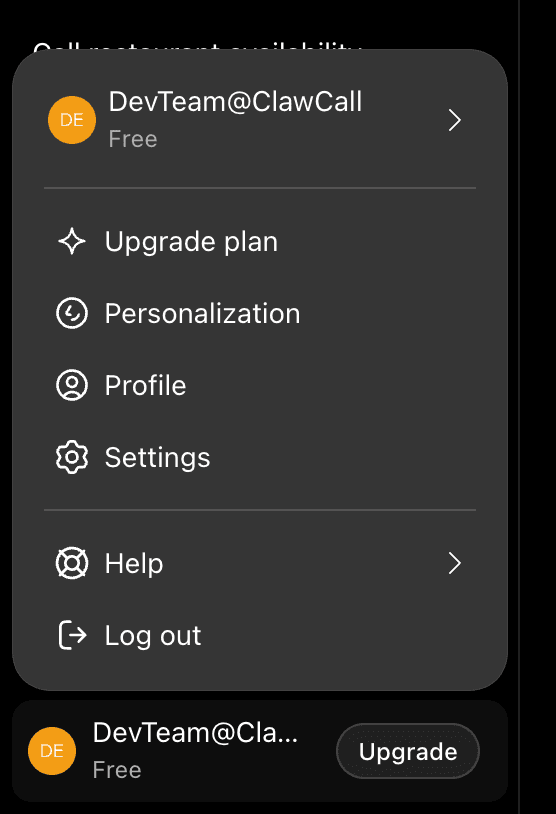
Open your profile menu and select Settings. Open Plugins settings
In Settings, select Plugins in the left sidebar.
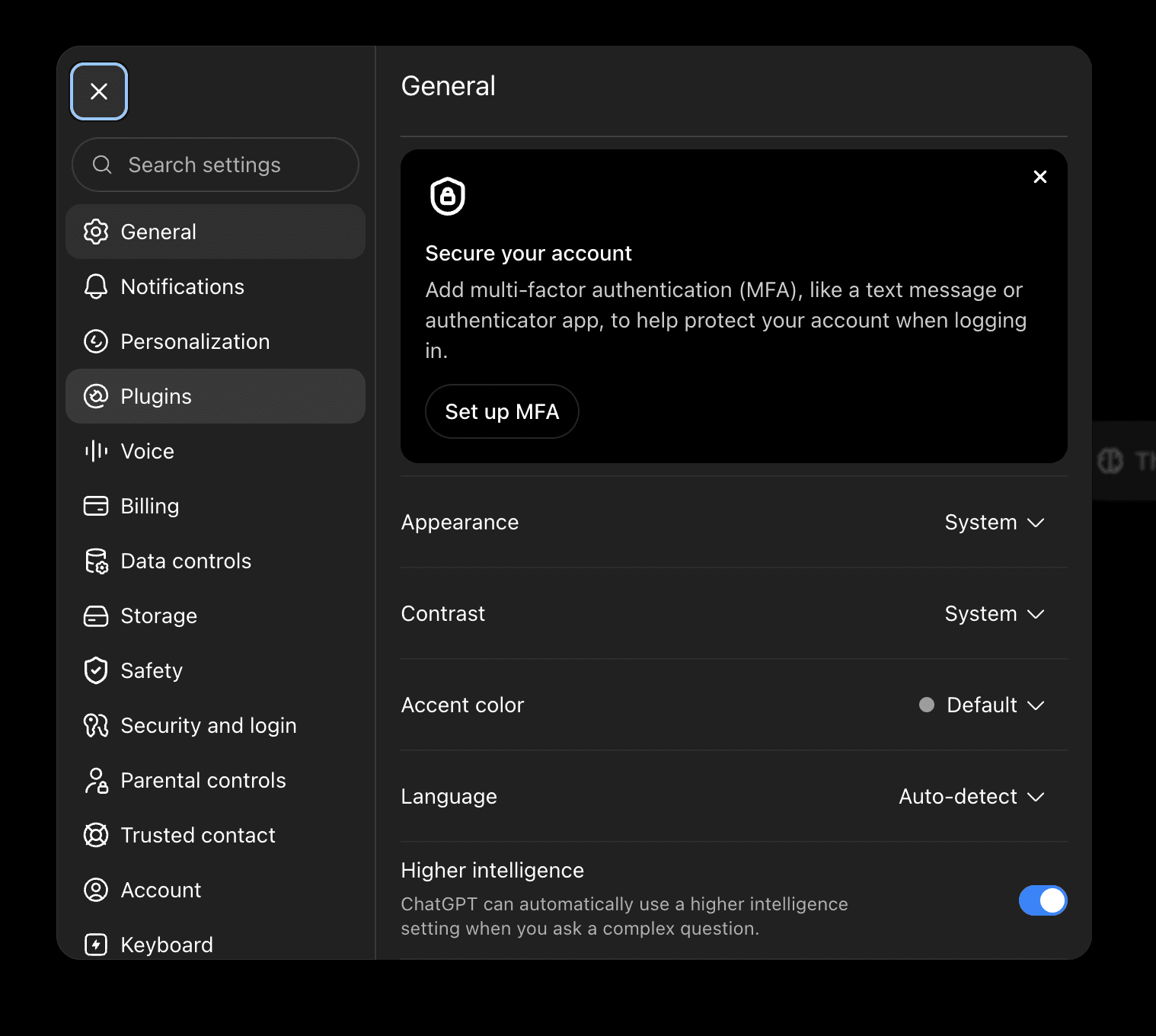
Select Plugins in ChatGPT Settings. Open Developer mode
On the Plugins settings page, select Developer mode.
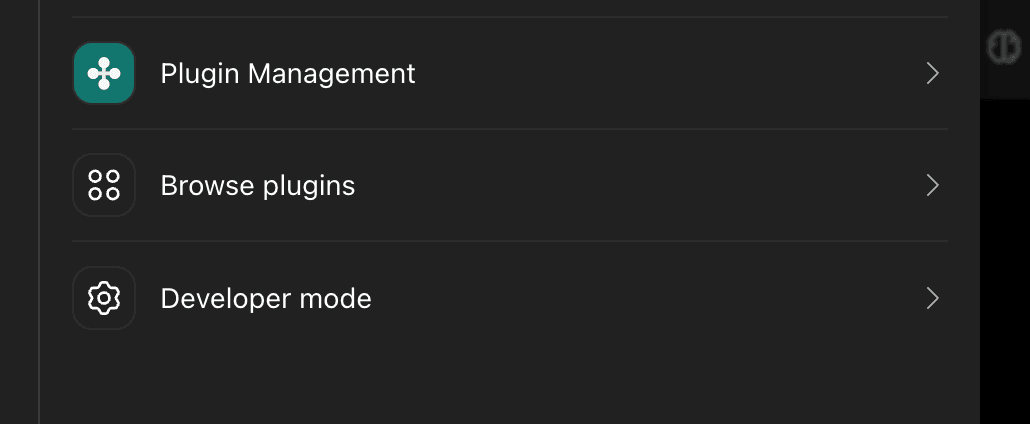
Select Developer mode from the Plugins settings page. Turn on Developer mode
Turn on the Developer mode toggle under Security and login. ChatGPT labels unverified custom connectors as elevated risk; enable this setting to add ClawCall using its hosted MCP URL.
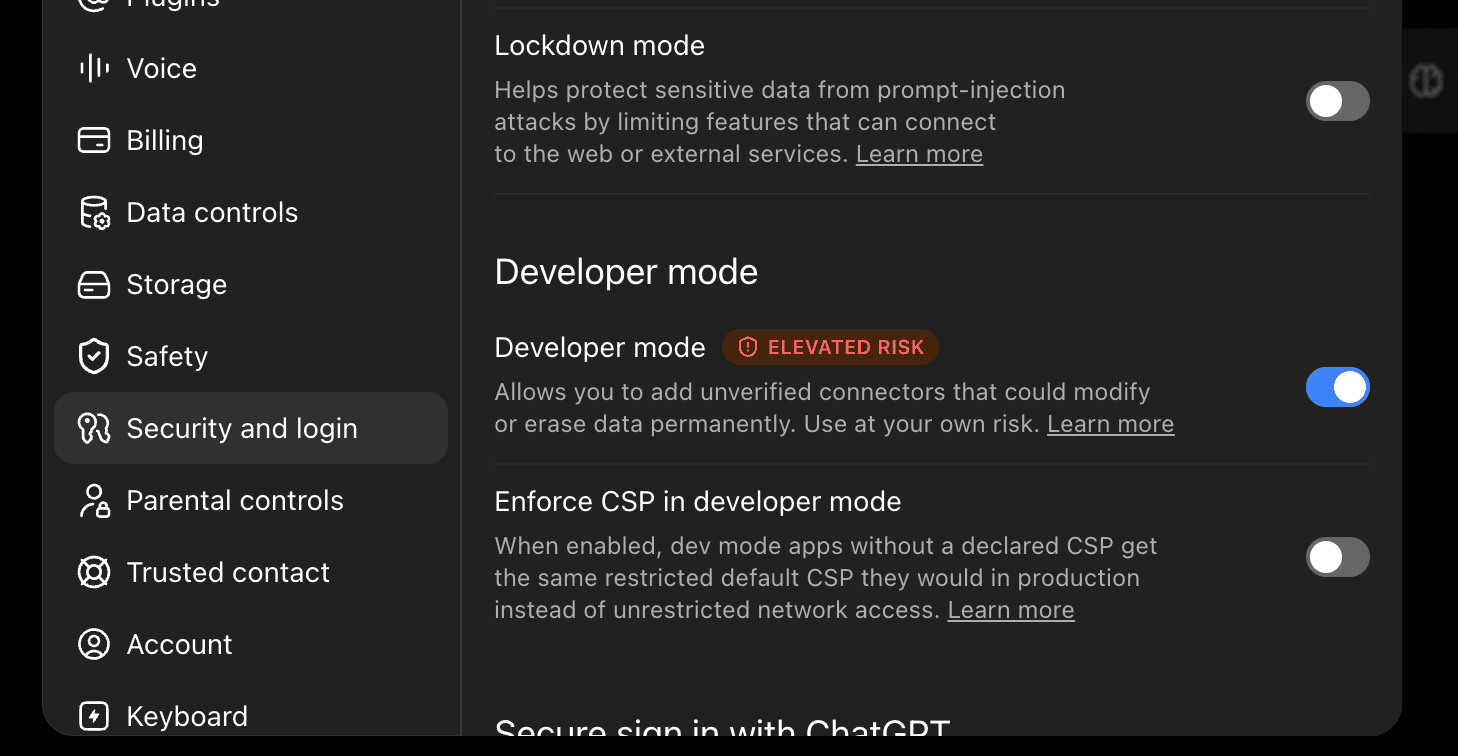
Turn on Developer mode under Security and login. Return to Plugins
Close Settings, select Plugins in the ChatGPT sidebar, then choose the plus button beside Search plugins.
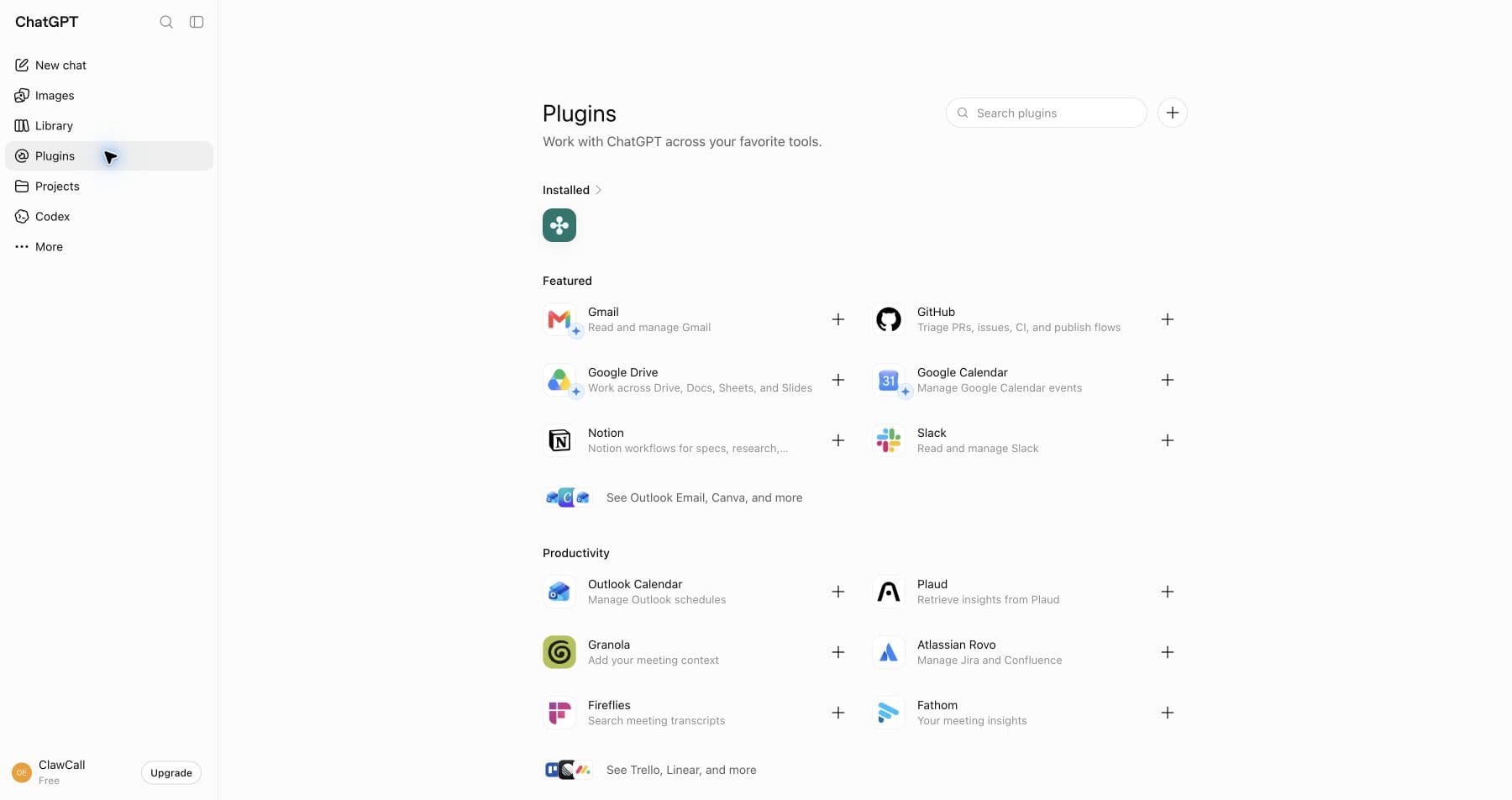
Open Plugins from the ChatGPT sidebar, then select the plus button. Create the ClawCall plugin
Set the name to ClawCall, keep Connection on Server URL, enter https://api.clawcall.dev/mcp, and choose OAuth.
Leave advanced OAuth fields empty. ChatGPT can discover ClawCall’s authorization and protected-resource metadata, dynamically register a public client, and complete authorization code with PKCE S256.
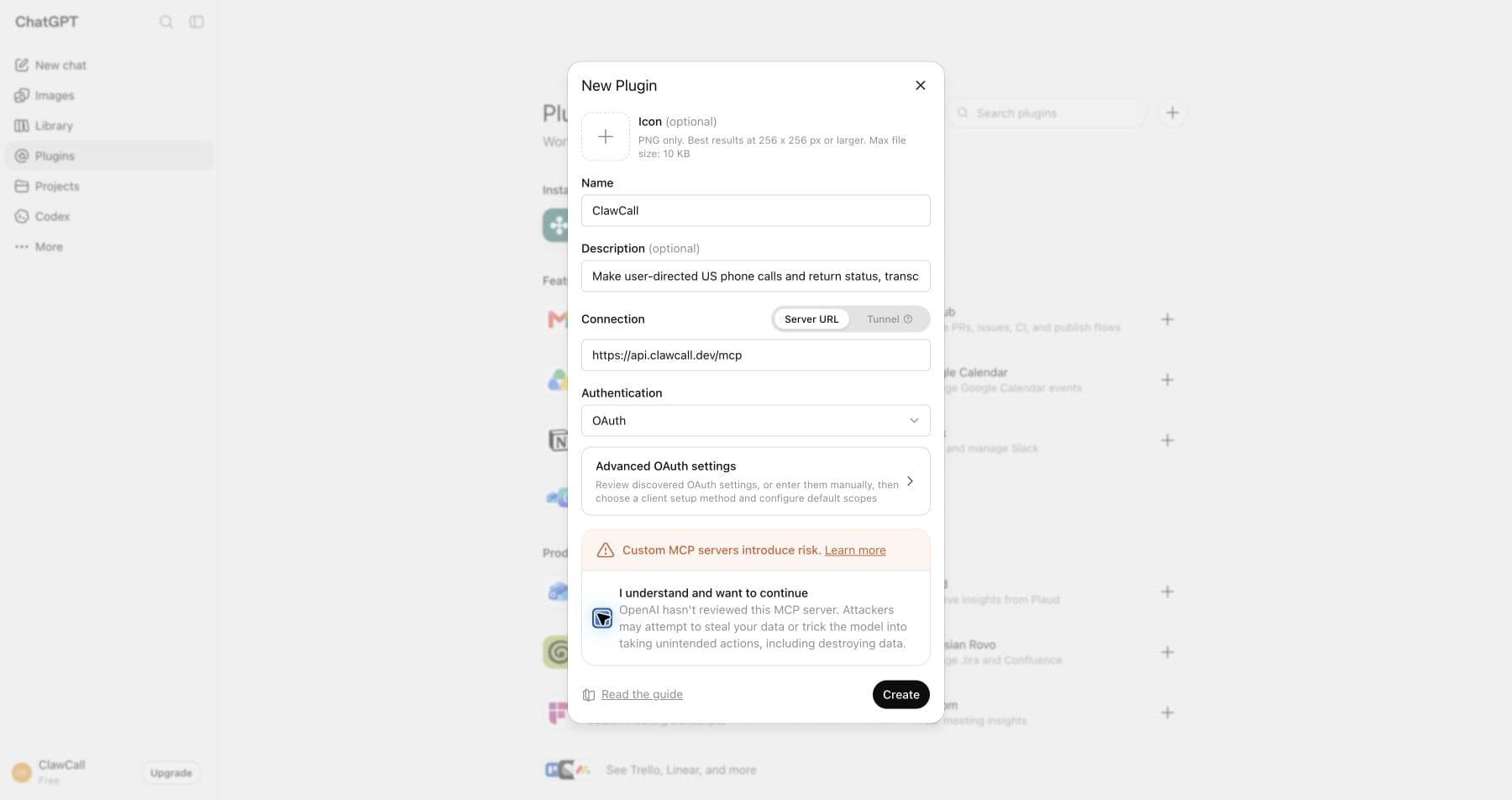
Create a plugin named ClawCall and enter the hosted endpoint with OAuth. Sign in with ClawCall
Select Sign in with ClawCall, then use the ClawCall account whose plan and call history the connection should access.
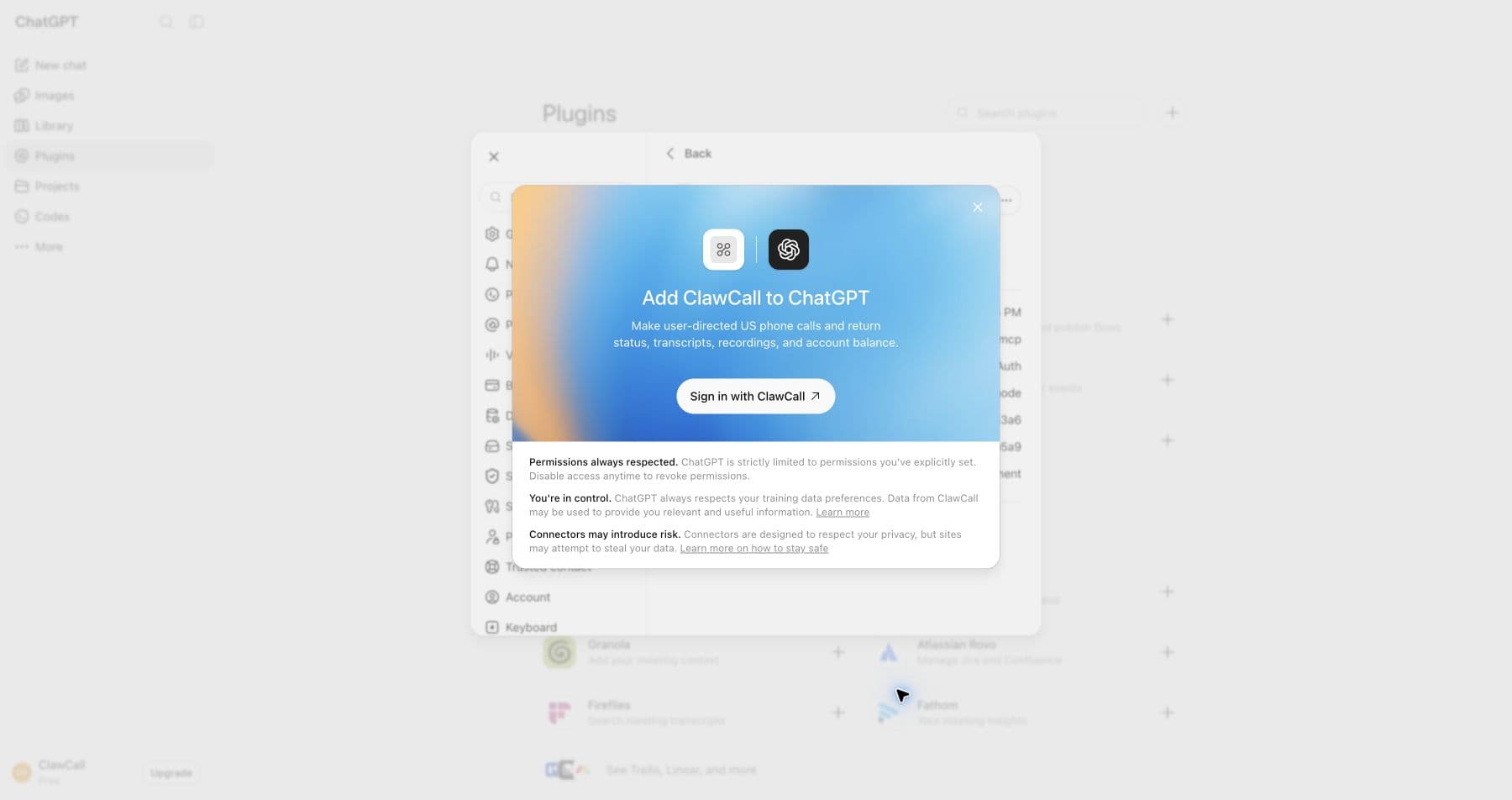
Sign in to connect the plugin to a ClawCall account. Review OAuth access
Confirm the consent page identifies ChatGPT, review the bounded calls:read and calls:write scopes, and choose Allow connection. ChatGPT receives revocable OAuth tokens rather than your ClawCall API key.
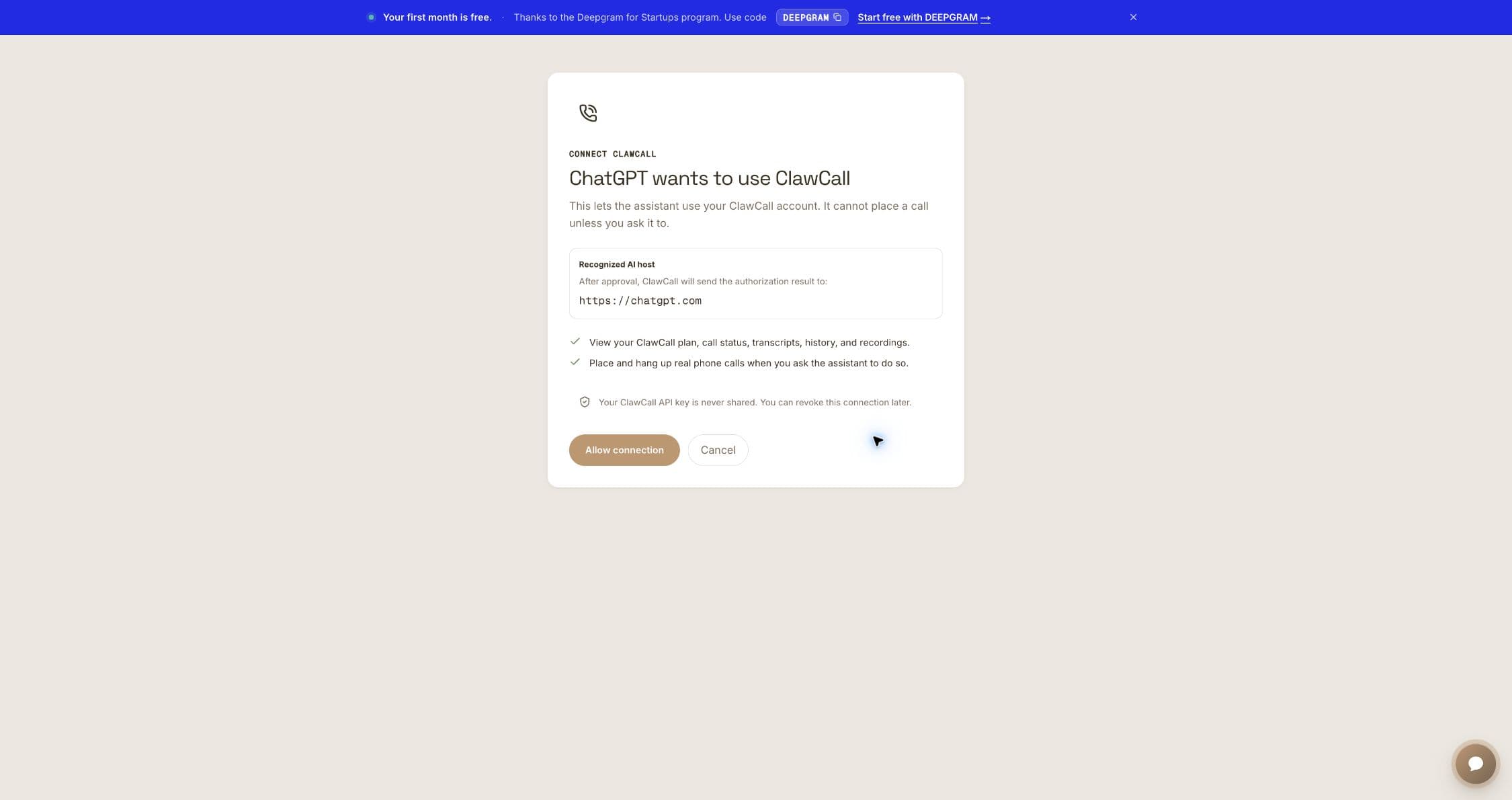
Review both bounded scopes before allowing the connection. Refresh all eleven actions
Back in plugin settings, confirm OAuth status and select Refresh under Information. If Actions initially says no actions are available, refresh and start a new chat.
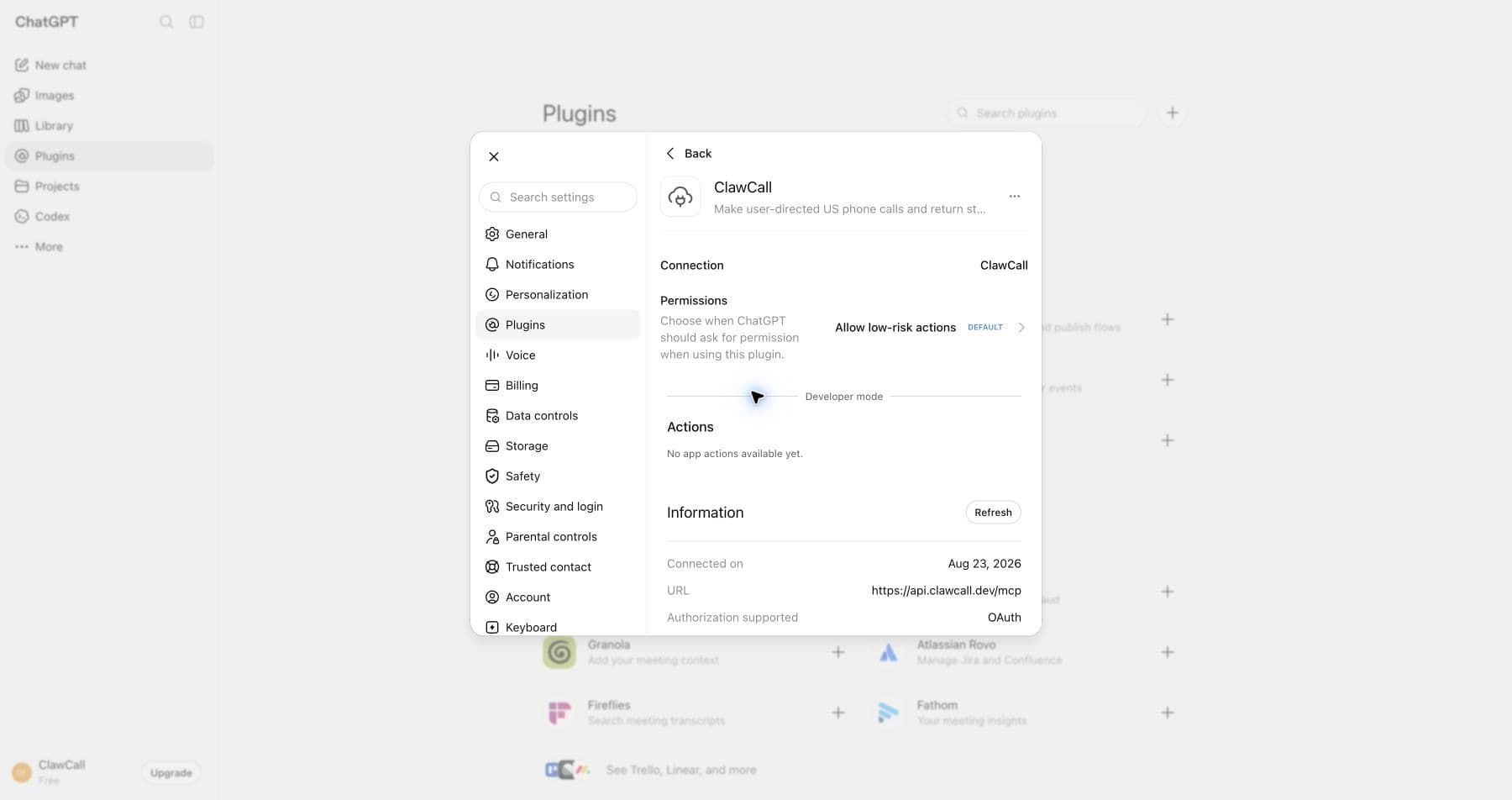
Refresh after OAuth so ChatGPT discovers the current tools. Apply ClawCall's official permission recommendation
Open Permissions and choose Allow all actions. This is ClawCall’s recommended setting so ChatGPT can place the call, monitor it, and retrieve captured transcript evidence when present without repeated approval prompts.
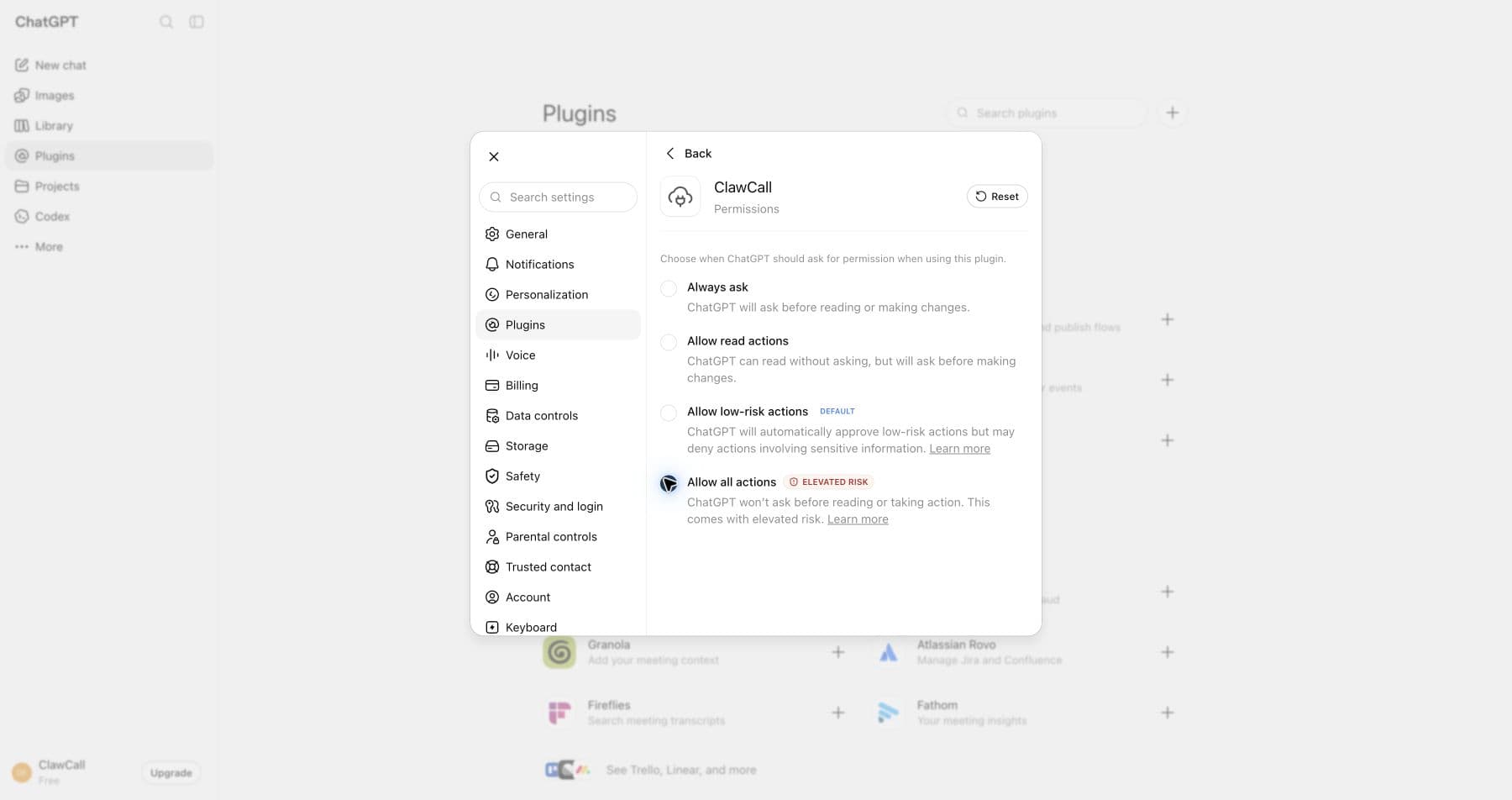
Official recommendation: Allow all actions on a trusted account. Optionally verify the tool picker
Open the tools menu and confirm ClawCall is listed. You do not need to repeat this before each request; automatic selection remains available.
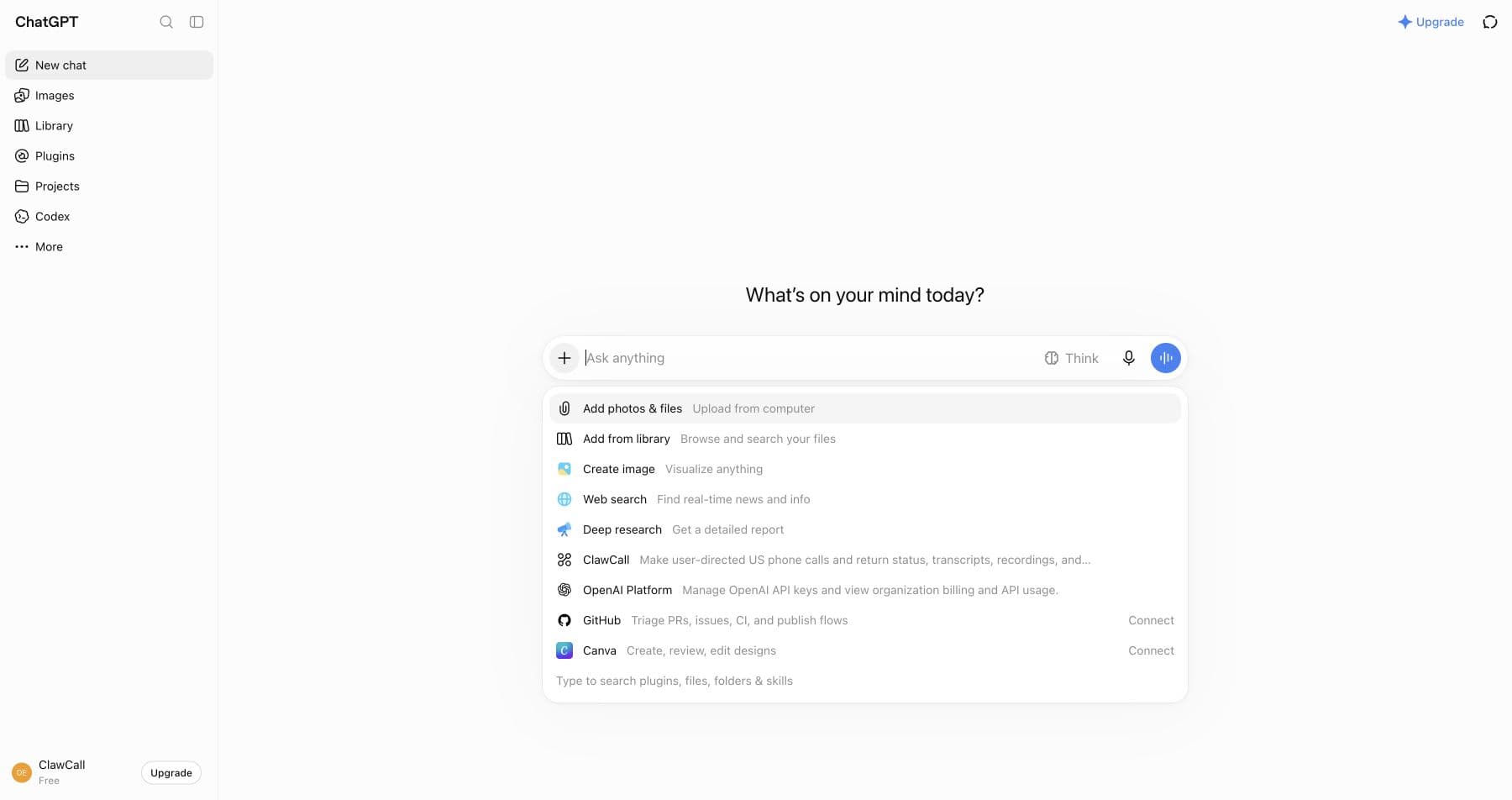
The picker is an optional verification step. Make a controlled first call
Start with get_balance, then call a number you control. Read the transcript evidence actually captured before declaring success.
OAuth scopes and host permissions
A compatible host discovers ClawCall's authorization-server and protected-resource metadata, dynamically registers a public client, and completes OAuth 2.1 authorization code with PKCE S256. It receives revocable tokens—never your ClawCall API key—and the consent flow requests two bounded scopes:
calls:readRead plan/trial state, call settings, reserved-number status, call status, captured transcript evidence when present, history, and temporary recording access when available.
calls:writePlace and hang up real phone calls or update call settings when you ask the assistant to do so.
Recommended ChatGPT permission: Allow all actions
Choose Plugins → ClawCall → Permissions → Allow all actions. This is ClawCall's official recommendation and gives ChatGPT uninterrupted access to the complete eleven-action workflow.
Allow all or Always allow lets the host complete the requested call workflow—including status polling and nullable transcript retrieval—without stopping for each ClawCall tool. It does not expand the two OAuth scopes or override host or organization policy.
Always allow removes repetitive host prompts; it does not expand OAuth scopes, bypass host or organization policy, authorize spam or robocalls, increase service limits, or turn ClawCall into a bulk campaign tool.
Verify read-only, then place one controlled call
Start with account state. Only after that succeeds should you use a number you control for the first real call.
Check my ClawCall plan and remaining trial allowance. Do not place a call.
Using ClawCall, call my phone at +1XXXXXXXXXX. Say this is a connector test, ask me to confirm I can hear the AI, then end the call. Show me any transcript evidence actually captured afterward.
Real ChatGPT example: automatic selection for a price inquiry
A normal request asked ChatGPT to find and call a nearby Domino's. ChatGPT combined web search with ClawCall without manual pinning and returned the large-pizza prices it heard. The artifact does not claim an order or reservation was completed.
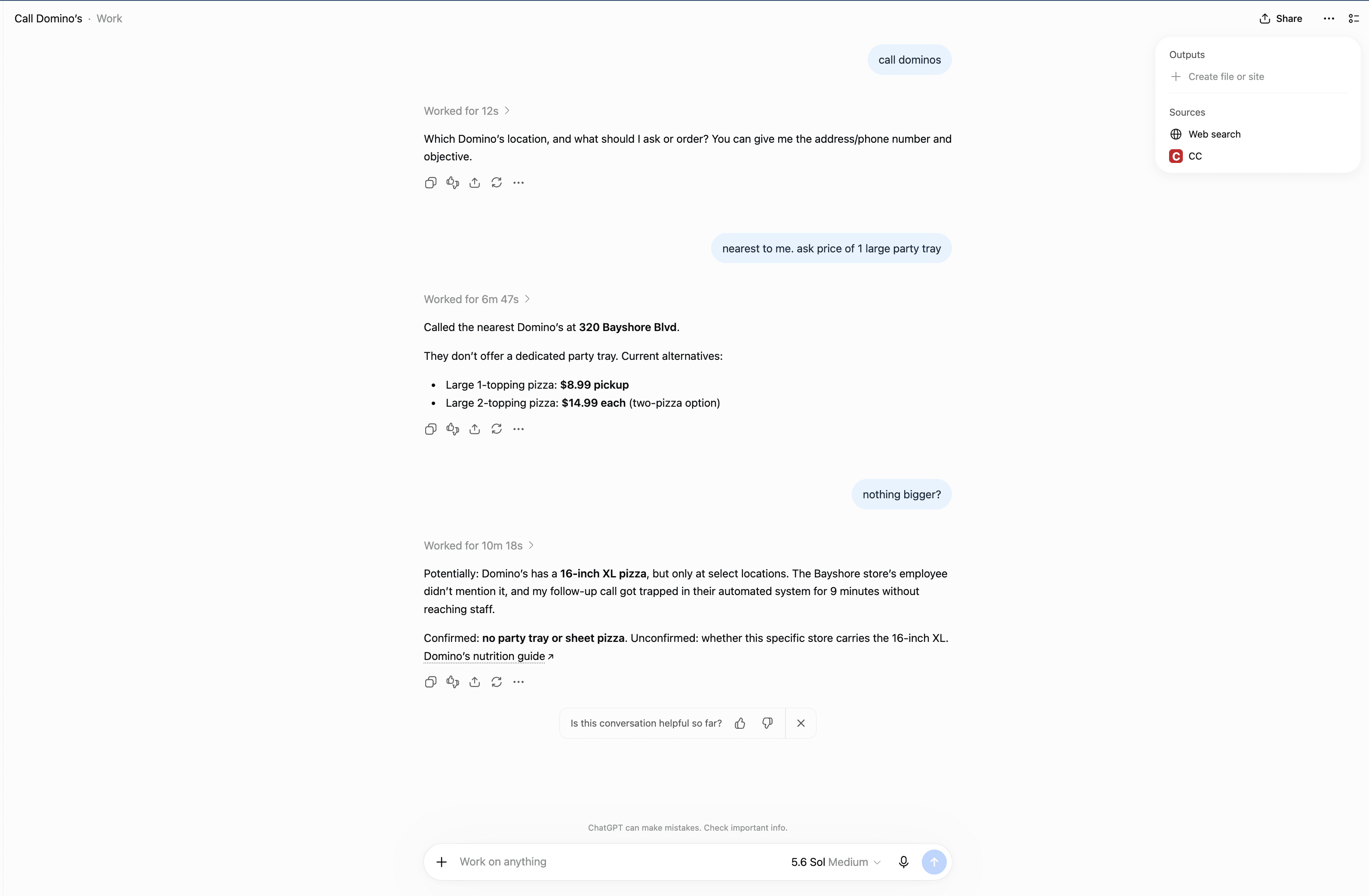
The 11 ClawCall tools
Read the transcript evidence actually captured before declaring success. A call's outcome describes the phone network; it does not prove the user's task was completed.
| Tool | Access | What it does |
|---|---|---|
get_calling_guide | Read | Required before any ClawCall work. Read current workflow guidance and examples before placing calls. |
get_balance | Read | Read the signed-in account's plan and remaining trial allowance. |
get_call_settings | Read | Read reusable voice/personality, reserved-number capabilities, and inbound-assistant availability. |
update_call_settings | Write | Update global or inbound call settings in separate calls. |
place_call | Write | Start one real outbound phone call and return immediately. |
place_call_and_wait | Write | Start one call and wait up to 90 seconds for an initial result. |
get_call | Read | Read a call's lifecycle, outcome, and a nullable bounded transcript tail. |
get_call_transcript | Read | Read the transcript evidence captured for a call. |
list_calls | Read | Read recent call history for the connected account. |
get_recording | Read | Get a temporary, playable recording URL when one is available. |
hangup_call | Write | Stop a queued or live phone call. |
Troubleshooting
The server returns 404 or no tools appear
Confirm the server URL is exactly https://api.clawcall.dev/mcp; the trailing /mcp is required. Refresh or reconnect after correcting it.
You see 401 or Sign in required
Restart the host's Connect, Auth, or MCP login flow and approve ClawCall access again. Do not replace OAuth with a pasted ClawCall API key.
The tool list looks stale
Refresh or restart the MCP connection, then start a new conversation so the host loads current tool metadata. The current server exposes eleven tools.
A phone number is rejected
ClawCall currently calls real US numbers only. Use +1 E.164 format: +1 followed by ten digits.
The wait ended while the call is still running
Ask the host to poll get_call. A host or tool wait cap is not itself a call failure; verify lifecycle, outcome, and the nullable transcript field.
A recording link no longer works
Recording URLs are temporary. get_recording returns the original link and cannot renew it after expiry. ClawCall deletes transcripts 7 days after a call ends and recordings 10 minutes after a call ends.
Disconnect and revoke access
ChatGPT and ClawCall FAQ
- Do I need to choose ClawCall before every request?
- No. Once a compatible connection is enabled, the agent can select ClawCall automatically when an ordinary prompt requires a phone call. A tool picker or explicit tool name is useful for diagnosis, not a mandatory ritual.
- Why does ClawCall recommend Always allow or Allow all?
- It lets the agent place the requested call, poll its status, and retrieve captured transcript evidence when present without repeated host approval prompts. This is ClawCall's recommended setting for the complete workflow; the connection remains limited to its granted OAuth scopes and the host's policy.
- Does a successful network outcome prove the task succeeded?
- No. A network outcome describes the call path. Read the transcript evidence actually captured before claiming a reservation, cancellation, price, or other real-world task was completed.
- How do I revoke access?
- Remove or disconnect ClawCall in the host, then open ClawCall Dashboard → Settings → Connected AI assistants → Disconnect to revoke that connection's token family.
Sources, review method, and next steps
ClawCall reviewed first-party host documentation and its own current product documentation on the dates below. Only ChatGPT and Claude are labeled as live UI verified.
- OpenAI: Connect and test your pluginofficial-host-doc · checked
- OpenAI: Scaling AI for everyonefirst-party-adoption · checked
- ClawCall: Hosted MCP for AI agentsfirst-party-product-doc · checked
- ClawCall securityfirst-party-security · checked